Several orders, one invoice
Combine open lines from several of the same customer's Orders in one Invoice. Each line keeps its link to its own Order and cannot exceed what remains on it.
Sales order management in Gestix ERP
Record what each customer ordered, deliver or invoice it in as many stages as you need, and always see what has been fulfilled and what remains — on the order itself, together with the documents that fulfilled it. Part of the Gestix ERP for SMEs in distribution, retail and assembly or production.
A customer Order can be entered directly or created from an earlier quotation, proforma or cost estimate, so its lines do not have to be typed again. Each later step is a document your team creates when the goods or the invoice are ready, and Gestix proposes the quantities that are still open.
An Order is fulfilled either by a Delivery or directly by an Invoice. Each Delivery or Invoice created from the Order can take all of the remaining quantity or only part of it, line by line, so you can ship what is ready now and keep the rest for later.
Every Order line shows the ordered quantity, how much has been fulfilled and how much remains — the Qty, Fulfilled and Remaining columns of the Order. Quantities not yet fulfilled stay on the same Order: orders that cannot ship in full do not need a separate back-order document. The Order remains pending until nothing remains, and its Next steps note explains that unfulfilled quantities can be processed later.
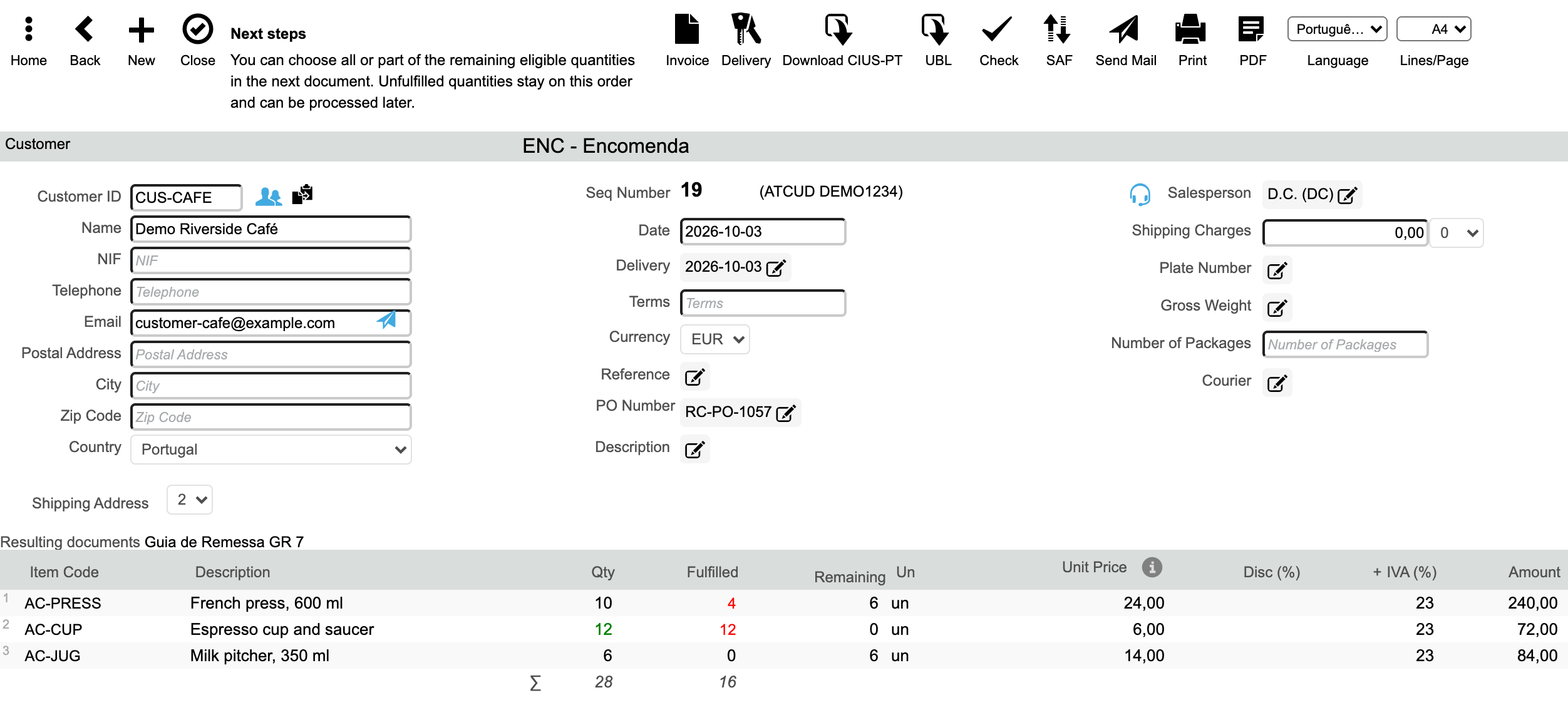
Each Order lists its resulting documents: the Deliveries and Invoices created directly from it to fulfil its lines. Open them from the Order to see what was delivered or billed against it.
When no line has anything remaining, the Order closes. With the appropriate permission, an Order can also be closed manually, releasing whatever remains. Billing deliveries and other earlier documents is covered in Gestix Invoicing.
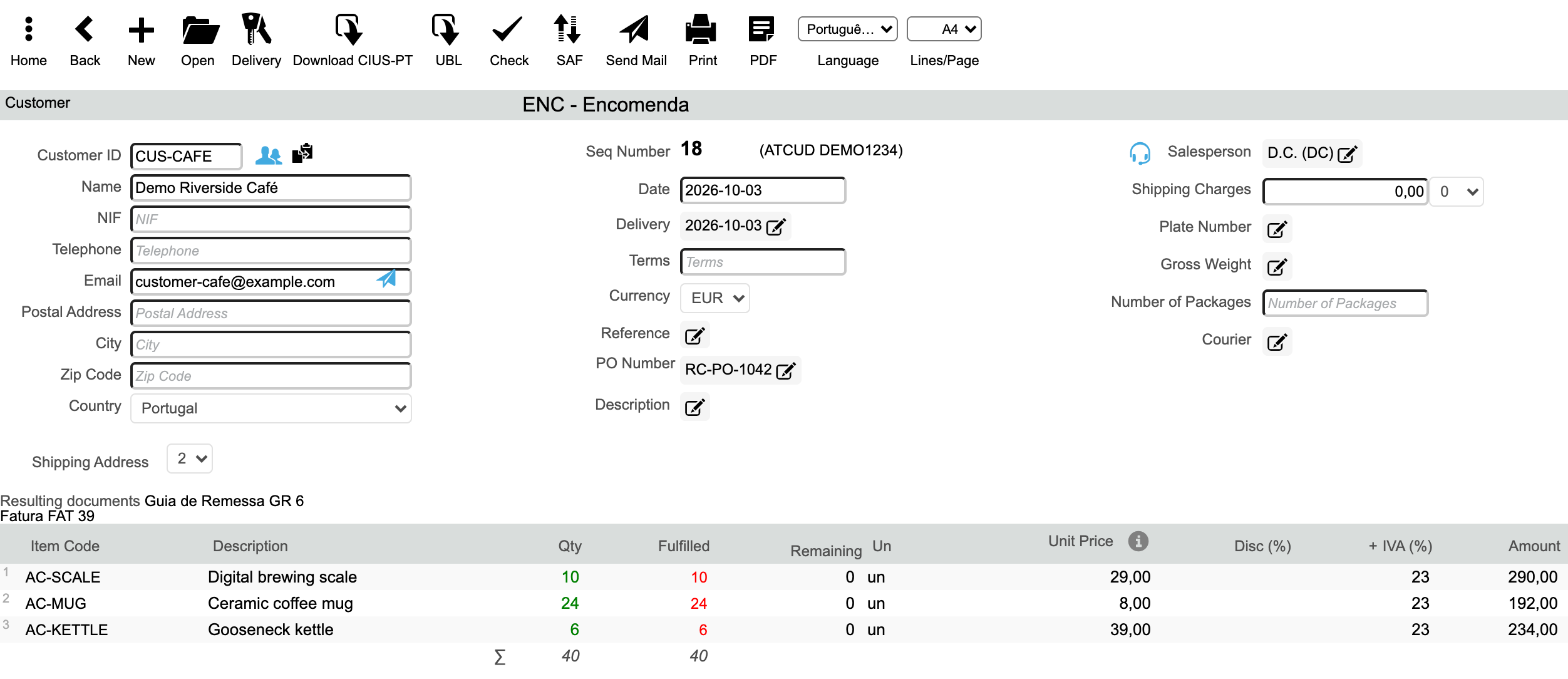
A café orders 10 digital brewing scales, together with mugs and kettles.
The completed order in the screenshot above is this example.
Registering an Order records outstanding customer demand; it does not issue stock. Stock is issued when a Delivery, or an Invoice created directly from the Order, is registered. Each article reflects the quantity still outstanding on open customer Orders. Gestix tracks those quantities as demand and does not set aside specific stock units for an Order.
When it is time to buy, purchase suggestions can take outstanding customer Orders, current stock, safety stock and pending purchases into account, and add the results as editable lines to a supplier purchase order.
Combine open lines from several of the same customer's Orders in one Invoice. Each line keeps its link to its own Order and cannot exceed what remains on it.
If an Invoice that fulfilled part of an Order is voided, its quantity returns to the Order as remaining, ready to be fulfilled again.
Record the customer's own purchase order number on the Order. Prices can come from the customer's price list, with applicable discounts, where configured.
Where multiple currencies are configured, an Order can be issued in the customer's currency, with item prices converted using the document's currency and date.
Where approval limits are configured, quotations, proformas and cost estimates above a salesperson's limit go to a superior for authorization.
Search Orders by status to list those that are still pending, then open each one to see what remains on its lines.
Sales Order Management is available in Gestix Business Pro and Gestix Enterprise. Tell us how you take orders, deliver and invoice, and we will help you assess the appropriate edition and configuration.